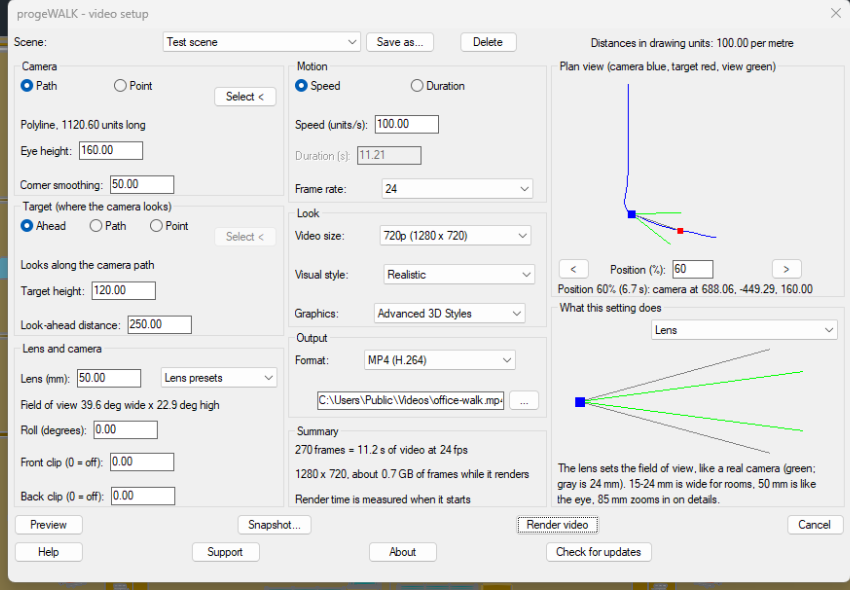
progeWALK 2.0 is out. progeWALK 1.0 asked for its settings one at a time. In 2.0, Add-On tab → progeWALK opens one video setup dialog with every setting on one screen.
What’s new
- One setup dialog. Click Select < to pick the camera path or point, and the target: Ahead (look along the path), a second path or a point.
- Plan view. The walk from above, at any position along it: the camera in blue, the target in red and the view in green.
- Setting diagrams. What this setting does shows a diagram for each setting: eye height, corner smoothing, target height, look-ahead, lens, roll, clipping, speed and frame rate.
- More camera controls. Lens presets with the field of view, roll, and front and back clipping.
- Live summary. The frames, the video length and the disk space, before you render.
- Preview. Plays the walk in wireframe in the drawing window. Nothing is saved, and the dialog comes back when it ends.
- Snapshot. Saves a PNG or JPG still at the chosen position.
- Scenes. Save the settings under a name in the drawing and use them again later.
- Help, Support, About and Check for updates are buttons in the dialog.
Render video works as before: a progress window shows each frame and the time left, with Stop and Resume. The installer now shows the license agreement.
Free update for progeWALK 1.0 users
If you have progeWALK 1.0, the update is free. Download progeWALK 2.0 from the progeWALK page and install it. Your unlock code keeps working.
Nothing else changes. The download is free and fully working; videos carry a watermark until progeWALK is unlocked. An unlock code costs $149 per computer, one-time. progeWALK needs progeCAD 2027 Professional on Windows.
Learn more on the progeWALK product page or in the progeWALK help.
Download progeWALK free, and try progeCAD 2027 free for 30 days. No credit card required.